

Once that rig is high up on the line, you are often flying blind, hoping your camera is pointed in the right direction and that your settings are correct.
For years, I struggled with the disconnect between controlling my gimbal and managing my GoPro. Trying to toggle between two different apps on my phone while the kite danced in the wind was a recipe for frustration—and missed shots.
But recently, I cracked the workflow. By utilizing modern smartphone multitasking, I have developed a setup that gives me total command over my entire aerial rig from the ground.
Here is how I simultaneously connect both my Feiyutech gimbal and GoPro to my mobile phone, display both apps via split-screen, and achieve full remote control.
The Setup: One Screen, Two Control Panels
The magic happens by pairing each piece of equipment with its dedicated official application and then running them side-by-side or stacked using Android’s split-screen multitasking feature.
My ground station configuration looks like this:
- Top App (Feiyu ON for the Feiyutech FY_WG2_36): This app provides the digital joystick control and stabilization settings for the gimbal mount.
- Bottom App (GoPro Quik): This app provides the live video feed from the camera, allowing me to frame the shot and adjust capture settings.
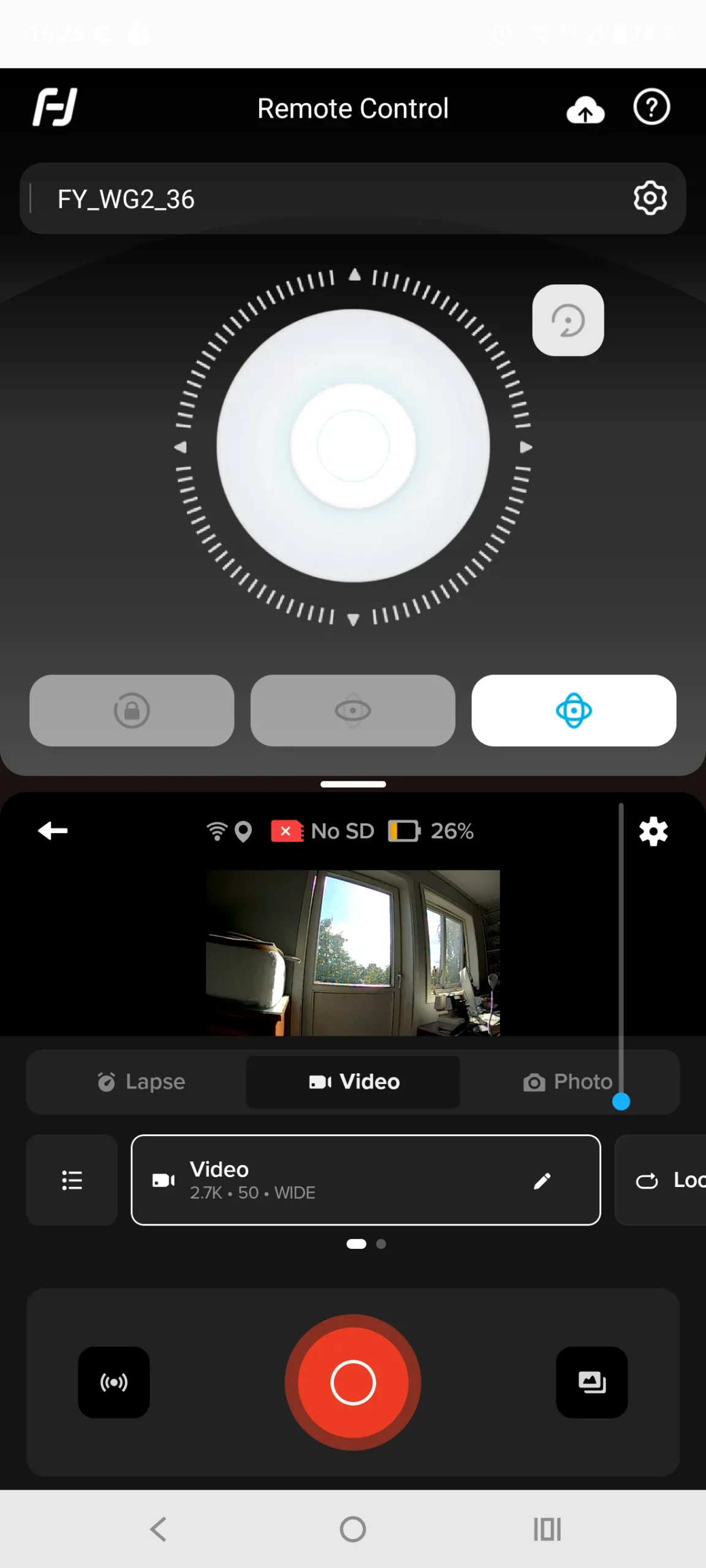
Remote control of both the gimbal and the camera!
What the Live Dashboard Tells Me
Looking at my field-testing screen layout, I get immediate system feedback from both devices at a glance:
- Top Half (Feiyu ON): Features a clear digital joystick for precision panning and tilting, along with mode indicators like the blue “FPV” setting.
- Bottom Half (GoPro Quik): Serves as mission control, showing the live video preview alongside critical system readouts:
- Connection Status: Good Wi-Fi signal.
- Storage Warning: An alert that says “No SD“—a vital prompt to check the memory card before launching.
- Battery Level: Displays the current battery status (e.g., sitting at 26%).
- Shooting Parameters: Confirms I am set to Video Mode, recording at 2.7K at 50fps with a Wide field of view.
Being able to monitor all of this data simultaneously completely changes how you manage a flight.
A Quick Reality Check: Range Limitations
While this setup bridges the gap between ground and sky, it is important to remember that connectivity is not limitless. Both Wi-Fi and Bluetooth signals have a finite physical range. If your kite and rig climb too far away or get obstructed, your mobile phone will eventually lose connection to the gimbal and camera apps.
This means it works best when your kite is operating within a reasonable line-of-sight distance, allowing you to maintain a stable link to both devices.
Why This is a Definite Upgrade for KAP Enthusiasts
Despite the distance boundaries, this dual-app split-screen workflow is a definitive upgrade that will make life much easier for any KAP enthusiast:
- Real-Time Framing Confidence: You no longer have to guess if your horizon is level or if the camera is pointing at your target landmark. The live feed confirms your composition instantly.
- Dynamic Mid-Flight Adjustments: If the wind shifts or the lighting changes, you don’t need to reel the entire rig back down. You can remotely correct the camera angle using the gimbal joystick or adjust your shooting parameters on the fly.
- Proactive Problem Solving: Spotting warnings like a missing SD card or a low battery before committing the rig to the sky saves you from wasting hours of flying time on empty files.
Final Thoughts
This simple software trick turns an ordinary smartphone into a powerful ground control station. For anyone looking to push the boundaries of what they can capture with a kite rig, integrating split-screen app control brings a whole new level of precision, ease, and professionalism to your aerial photography workflow.
Give it a try on your next breezy field session!